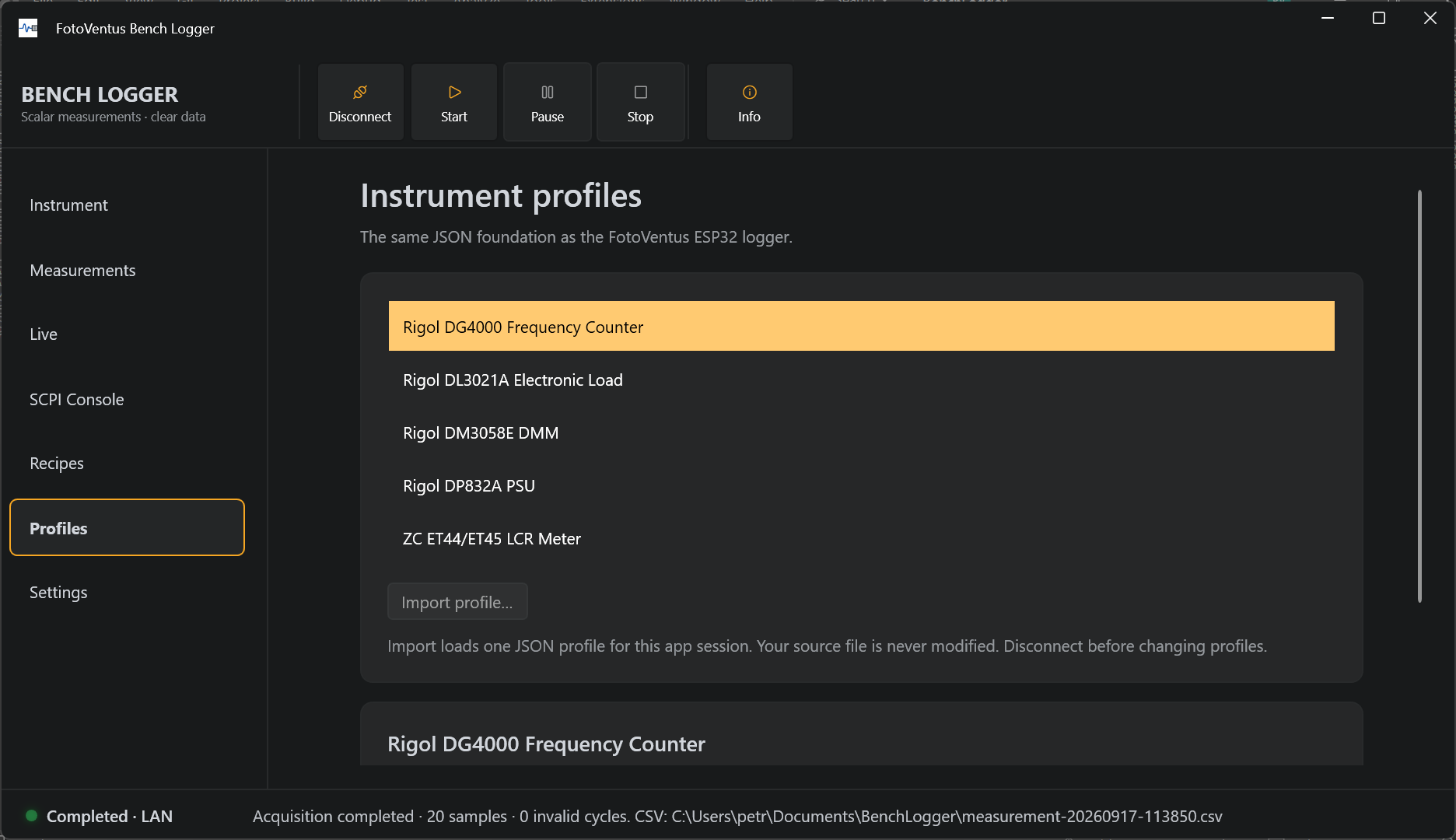
Build an instrument profile
A profile is a small JSON file that tells Bench Logger which instrument it describes, which SCPI commands to send and how to turn replies into named measurements. The connection address and COM settings belong to the connection screen; experiment settings can be saved as a recipe.
Start with the programming manual
- Find the instrument's SCPI programming guide. Check the supported transport, measurement query, reply format and units.
- Connect in Bench Logger and inspect
*IDN?in the SCPI Console. Use the model text foridn_contains, rather than a serial number or IP address. - Open the Profile Editor. Choose a preset, import an existing JSON file or click New profile.
- Fill in the identity, interval and measurements. For each measurement, enter a label, unit, unique CSV column, query and parser.
- Use Export v2, then import the file in Bench Logger under Profiles. Verify replies on the real device before a long recording.
The editor covers identity, measurements, parsers, initialization and per-measurement setup. Existing controls are preserved when importing v2 profiles; adding or changing them requires editing the JSON in a text editor.
What the file contains
| Part | Purpose |
|---|---|
schema_version | Use 2 for the format shown here. It supports numeric and comma-separated replies and measurement setup commands. |
id | A stable, unique profile identifier such as rigol_dg4000_counter. Use a simple filename-friendly name. |
instrument | name is the displayed name. idn_contains matches model text in the *IDN? reply. Optional manufacturer and model describe the device. |
default_interval_ms | Suggested interval between measurement cycles, in milliseconds (20–86,400,000). Slow instruments can take longer than the requested interval. |
select_single | true allows one selected quantity, useful for a DMM that switches functions. false allows several quantities. |
init | Optional list of instrument initialization commands. Review and send them with Send profile commands; connecting alone does not send them. |
measurements | The available quantities you can select for recording. Each entry describes one value: its displayed name, SCPI query, unit, CSV column and reply format. See each field explained below. |
controls | Optional explicit instrument settings: number, enum or toggle. These send commands when the user applies a control. |
A complete, minimal v2 profile
This is a starting template, not a universal DMM driver. Replace YOUR_MODEL with the actual identity text and confirm that the device supports the query.
{
  "schema_version": 2,
  "id": "example_dmm",
  "instrument": {
    "name": "Example SCPI multimeter",
    "idn_contains": "YOUR_MODEL"
  },
  "default_interval_ms": 1000,
  "select_single": true,
  "init": [],
  "measurements": [
    {
      "label": "DC voltage",
      "query": ":MEASure:VOLTage:DC?",
      "unit": "V",
      "column": "voltage_dc",
      "parser": {
        "type": "number"
      }
    }
  ]
}
A reply such as 1.234E+00 produces a reading of 1.234 V in the voltage_dc CSV column. Units are labels: specifying mV does not multiply the result by 1000. Use the unit the instrument actually returns.
The measurements list: each field explained
measurements is a JSON array, written inside square brackets [ ... ]. Each object inside braces { ... } describes one available quantity, such as DC voltage, current or frequency. Separate objects with commas. These entries appear on the application's Measurements page; only the quantities you select are recorded.
| Field | What to enter | What Bench Logger does with it |
|---|---|---|
label | A readable name, for example DC voltage or CH1 current. | Shows this name in the measurement selection and live view. You choose the wording; it is not sent to the instrument. |
query | The exact SCPI query from the instrument's programming manual, for example :MEASure:VOLTage:DC?. | Sends this command to the instrument and waits for its reply. The trailing ? normally identifies a query. Commands depend on the model; the label does not determine the command. |
unit | The unit of the returned value, for example V, A, Hz, s or %. Use "" for a value without a unit. | Displays the unit alongside the value. It does not convert or scale the number, and it is not appended to the numeric CSV cell. |
column | A unique CSV column name, for example voltage_dc or ch1_current. Simple names with letters, digits and underscores are easiest to reuse. | Uses this name in the CSV header so another tool can identify the readings. Unlike label, this is the data field name used by scripts and reports. Keep it stable when reusing a report. |
parser | An object describing the reply: {"type":"number"} for a single number, or {"type":"csv","index":1} for the second comma-separated field. | Extracts the numeric value from the raw response. CSV indexes start at zero. If omitted, the default parser expects a single number. See response examples below. |
setup | An optional array of SCPI setting commands, in execution order. Omit it or use [] when no setup is needed. | Sends these commands before this measurement's query on each acquisition cycle. Use this to select an instrument function when required. Unlike profile-level init, this runs as part of acquisition. |
Follow one reading from instrument to CSV
Using the complete profile above, Bench Logger sends :MEASure:VOLTage:DC?. Suppose the instrument replies 1.234E+00. The number parser reads 1.234, the live view labels it DC voltage with unit V, and the CSV stores the number under voltage_dc:
timestamp_utc,elapsed_s,sample,status,voltage_dc
2026-09-17T10:00:00.0000000Z,0,1,GOOD,1.234
The GOOD value in the status column means that all selected measurements in this cycle were read and parsed as finite numbers. If any measurement times out or cannot be parsed, the row is marked INVALID and the affected value is empty; other valid readings remain in that row. Bench Logger adds this status automatically, so it is not a measurement you need to define in the profile.
GOOD does not mean the result is accurate or within your required range. It only describes successful reading and parsing; numeric instrument error codes still need to be interpreted using the programming manual. See the CSV guide for handling invalid rows.
Changing label to Battery voltage changes the displayed name. Changing column to battery_v changes the CSV header. Neither change affects the SCPI query or the measured value.
Add another quantity
In the Profile Editor, click Add measurement and fill in the same fields for the next quantity. In JSON, add another object to the measurements array. Give it its own column. Set profile-level select_single to false only when selecting several quantities is appropriate for that instrument.
Selected entries are queried one after another, not simultaneously. Each entry sends its own query, even if another entry uses the same command with a different CSV parser index. Account for function switching and the time needed by the instrument when choosing an interval.
How replies become measurements
One number
{"type":"number"} reads one numeric reply, including scientific notation. Use it for a reply such as 12.34. A reply containing a unit suffix or arbitrary text is not automatically converted.
Several comma-separated numbers
{"type":"csv","index":0} reads the first field; index 1 reads the second. Indexes start at zero. Each desired field gets its own entry in measurements.
The DG4000 counter query :COUNter:MEASure? returns frequency, period, duty cycle, positive pulse width and negative pulse width, in that order. The bundled profile maps indexes 0–4 to Hz, s, %, s and s. For example:
{
  "label": "Duty cycle",
  "query": ":COUNter:MEASure?",
  "unit": "%",
  "column": "duty_cycle",
  "parser": { "type": "csv", "index": 2 }
}
Missing fields, nonnumeric text and non-finite values become invalid readings. Instrument-specific numeric overload codes may still look like numbers; check the programming guide. Binary replies, regular expressions and unit scaling are not supported by these parsers.
Initialization, measurement setup and controls
Initialization prepares an instrument once when you explicitly send the profile commands. For the DG4000 counter this is "init": [":COUNter:STATe ON"]. It enables the counter without configuring generator outputs.
Measurement setup is a per-measurement list sent by acquisition before its query. For example, an LCR measurement may include "setup": ["FUNCtion:IMPedance:A R", "FUNCtion:IMPedance:B D"] and then query FETCh?. Only use commands your instrument supports.
Controls expose deliberate settings separately from readings. A toggle has on_command/off_command; number and enum controls have a command containing {value}. Number controls can specify min, max and unit; enum controls list their options.
"controls": [
  {
    "id": "counter_enabled",
    "label": "Frequency counter",
    "type": "toggle",
    "on_command": ":COUNter:STATe ON",
    "off_command": ":COUNter:STATe OFF"
  }
]
Review commands that change an output, load or measurement function before applying them. A query ending in ? reads a response; a setting command changes device state.
Import, check, then record
- Export the profile and import it under Profiles. Imported files are saved in the local user catalog and loaded on the next start; the original file is left unchanged.
- Connect the instrument and check its identity. If it does not match, select the intended profile and correct
idn_containsfor future connections. - Stop acquisition before using the SCPI Console. Compare a raw measurement reply with the parser's expected format.
- Send initialization commands if needed, select readings and run a short recording. Compare values and units with the front panel and inspect the CSV.
CSV column names must be unique. Avoid reserved names timestamp, elapsed_s and status. Keep a profile to at most 128 measurements and a file below the 1 MB import limit.
Legacy profiles and the bundled catalog
Legacy v1 profiles use top-level name, match.idn_contains (and optional USB vid), and measurement scpi instead of v2's instrument and query. Bench Logger reads both formats. Legacy export cannot preserve CSV parsers or per-measurement setup; review the editor's compatibility warnings.
The legacy autostart field does not replace Bench Logger's explicit Start action. A profile defines how to communicate; it does not add a new transport or guarantee support for an untested instrument.